
Paragon
Digital Business Card Instructions
Thank you for continuing to be a part of the Paragon Network. We hope you enjoy your new digital business card.
1. Scan the QR code using your cell phone's camera and click the pop-up prompt to begin.
2. Your digital business card will display one of two screens. Follow the instructions for the appropriate display.
If your screen looks like the image on the left, then your digital business card is pre-loaded with your contact information. Log into https://app.mobilocard.com using the email we sent instructions to and click "reset my password." Check your SPAM folder if you do not see our instructions.
If your screen looks like the image on the right, then you will need to create a new account. Fill in your contact information on the sign-up form then click "submit." Log into https://app.mobilocard.com using the email you entered in the sign-up form and click "reset my password."
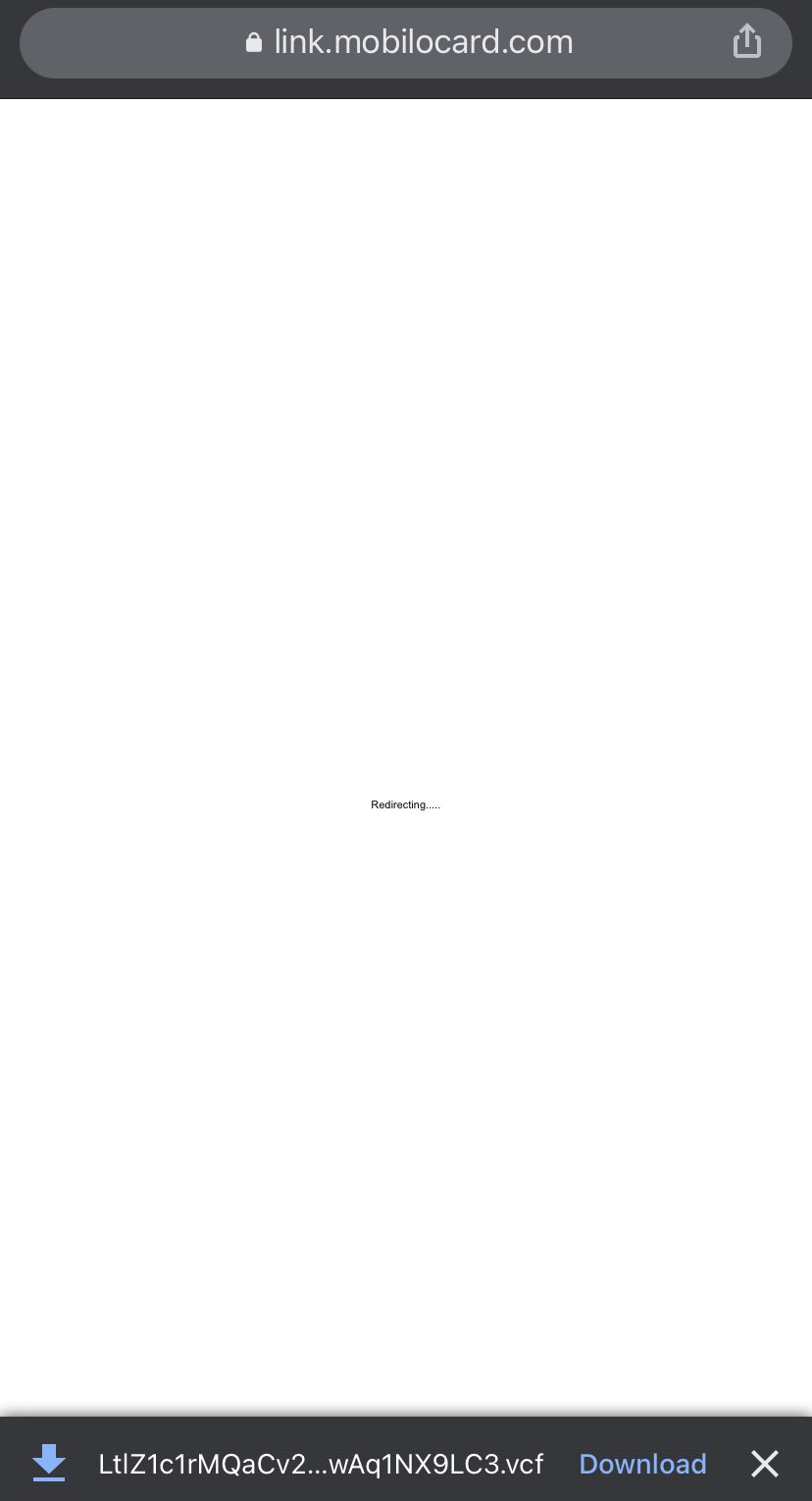
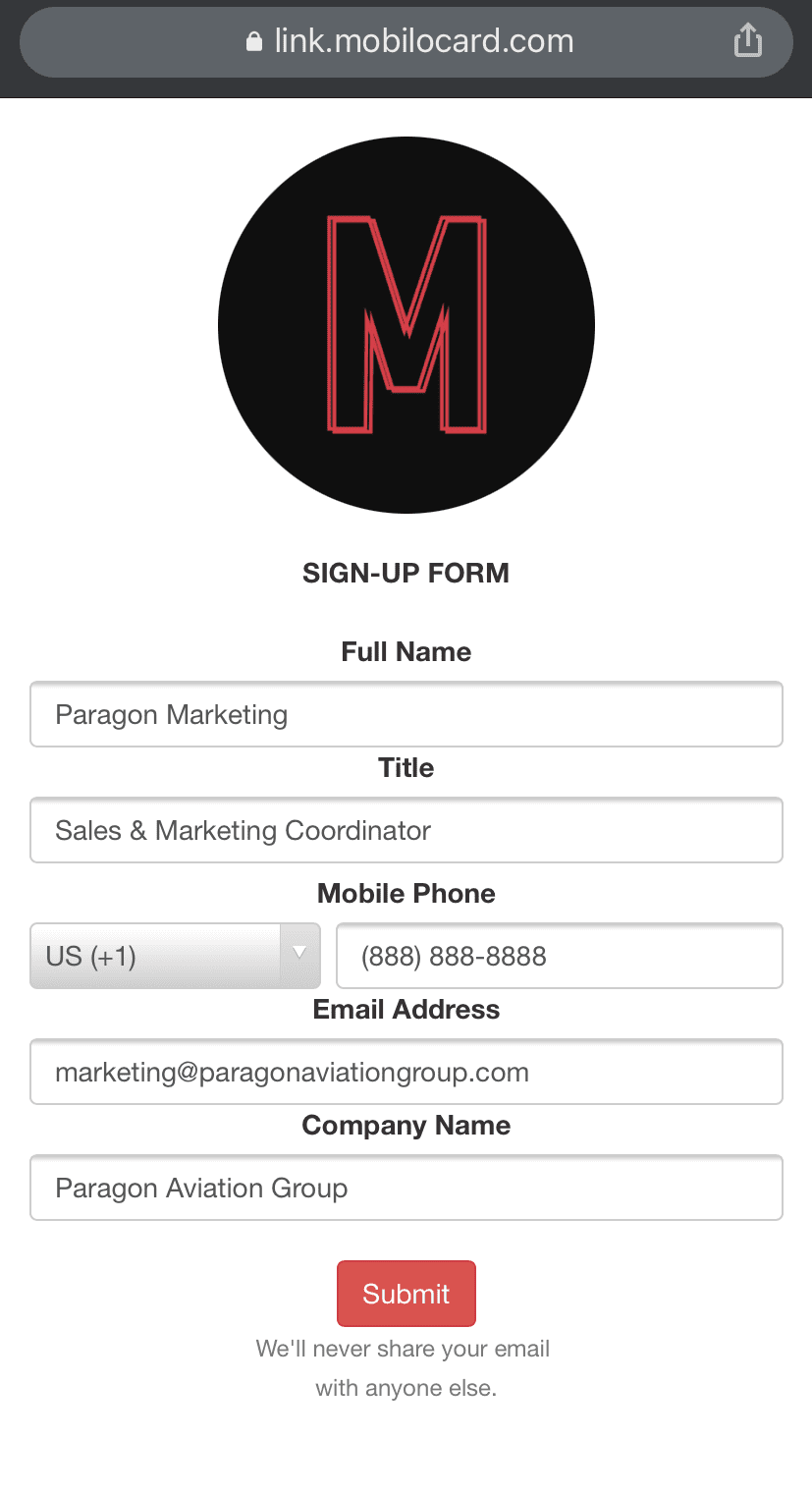
Configure your digital business card
Once you have successfully logged into your account, fill in the remaining information you wish for others to see such as "address" or your social media profiles.
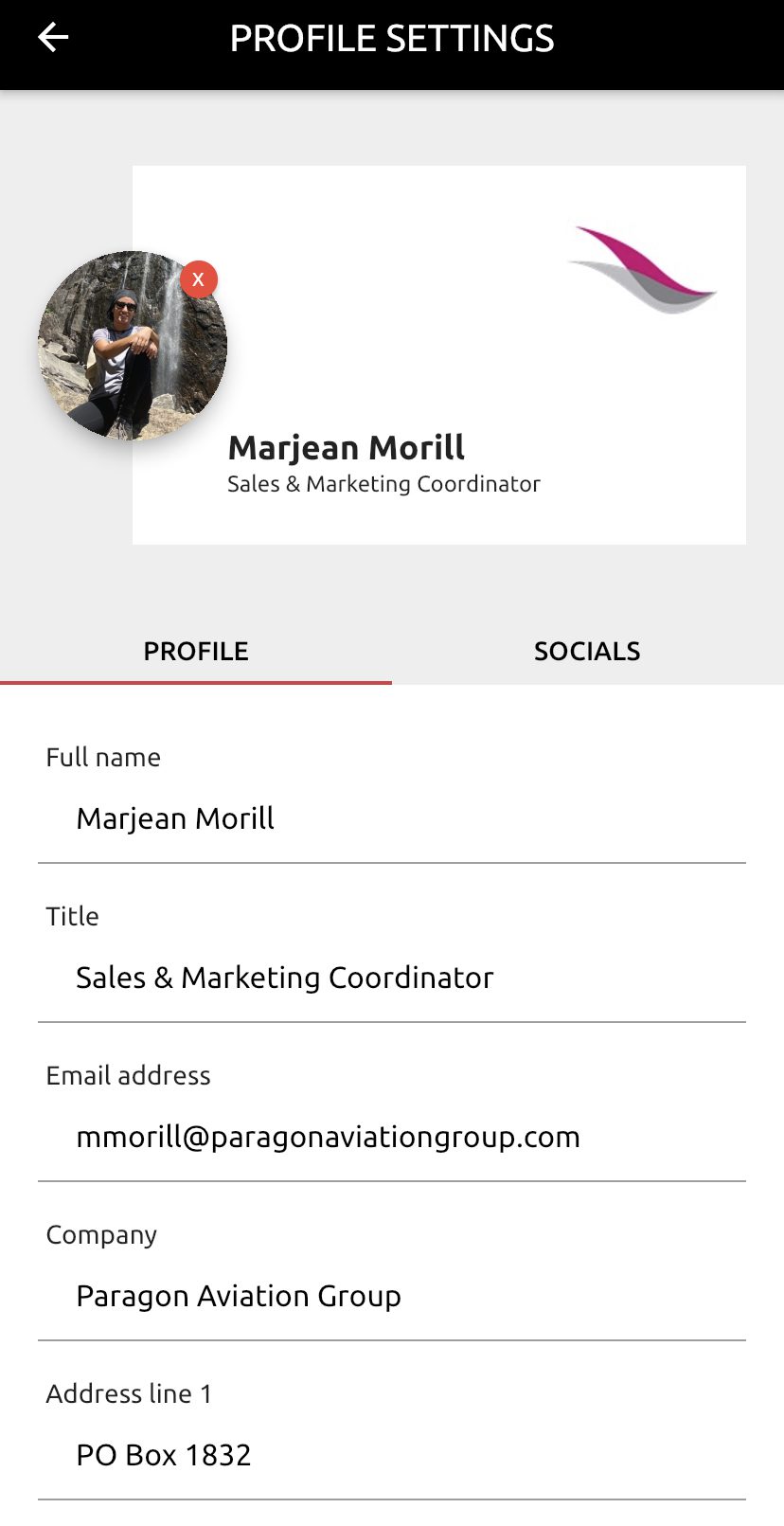
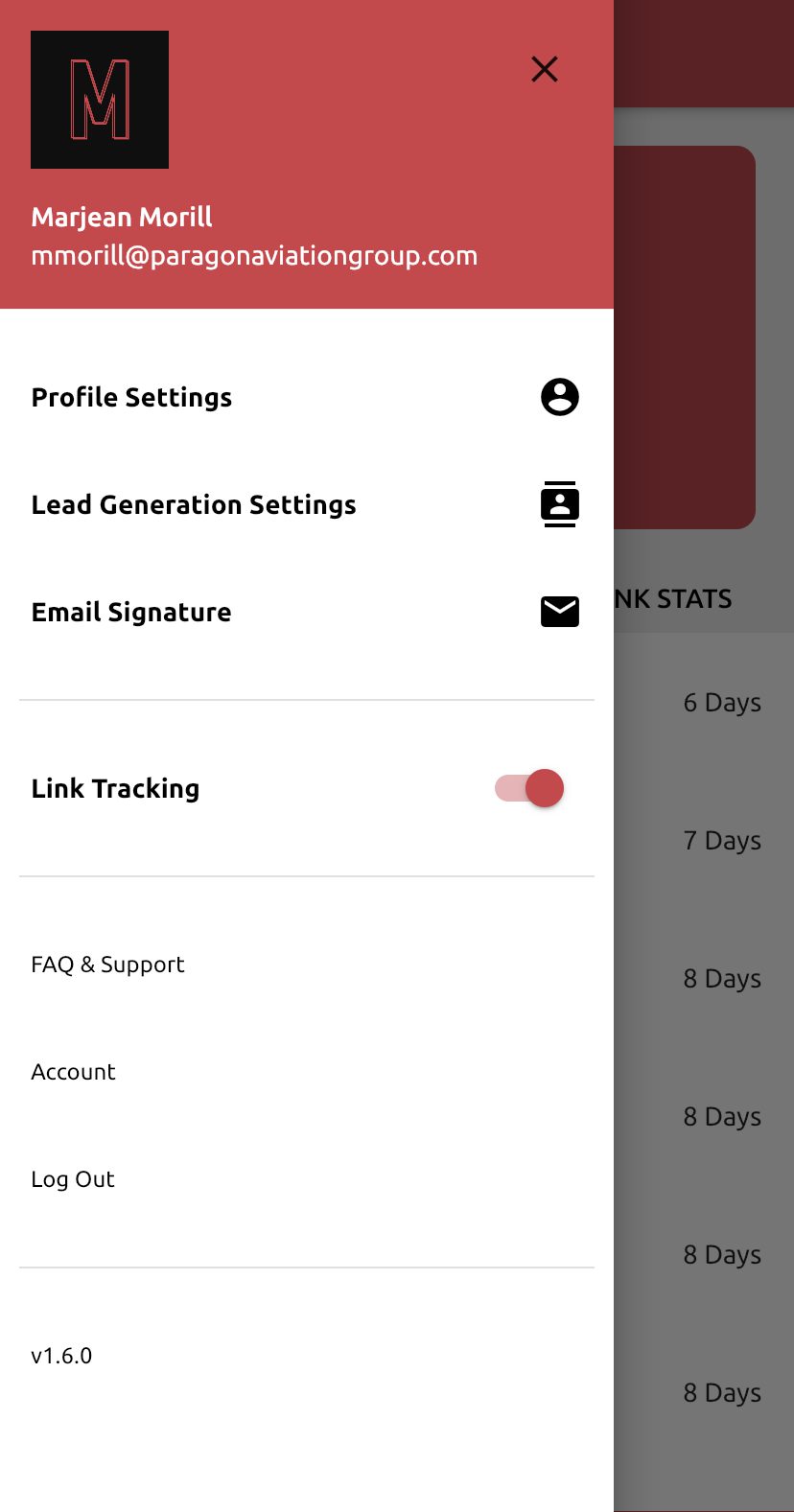
Select the menu lines at the top left corner of your screen to change your account settings.
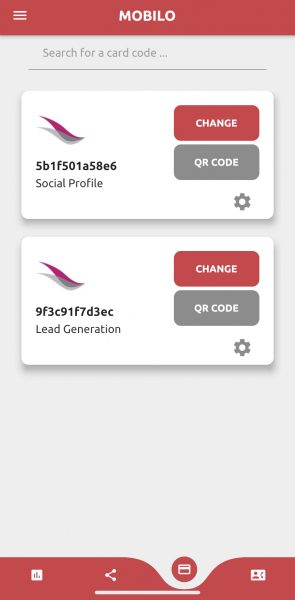
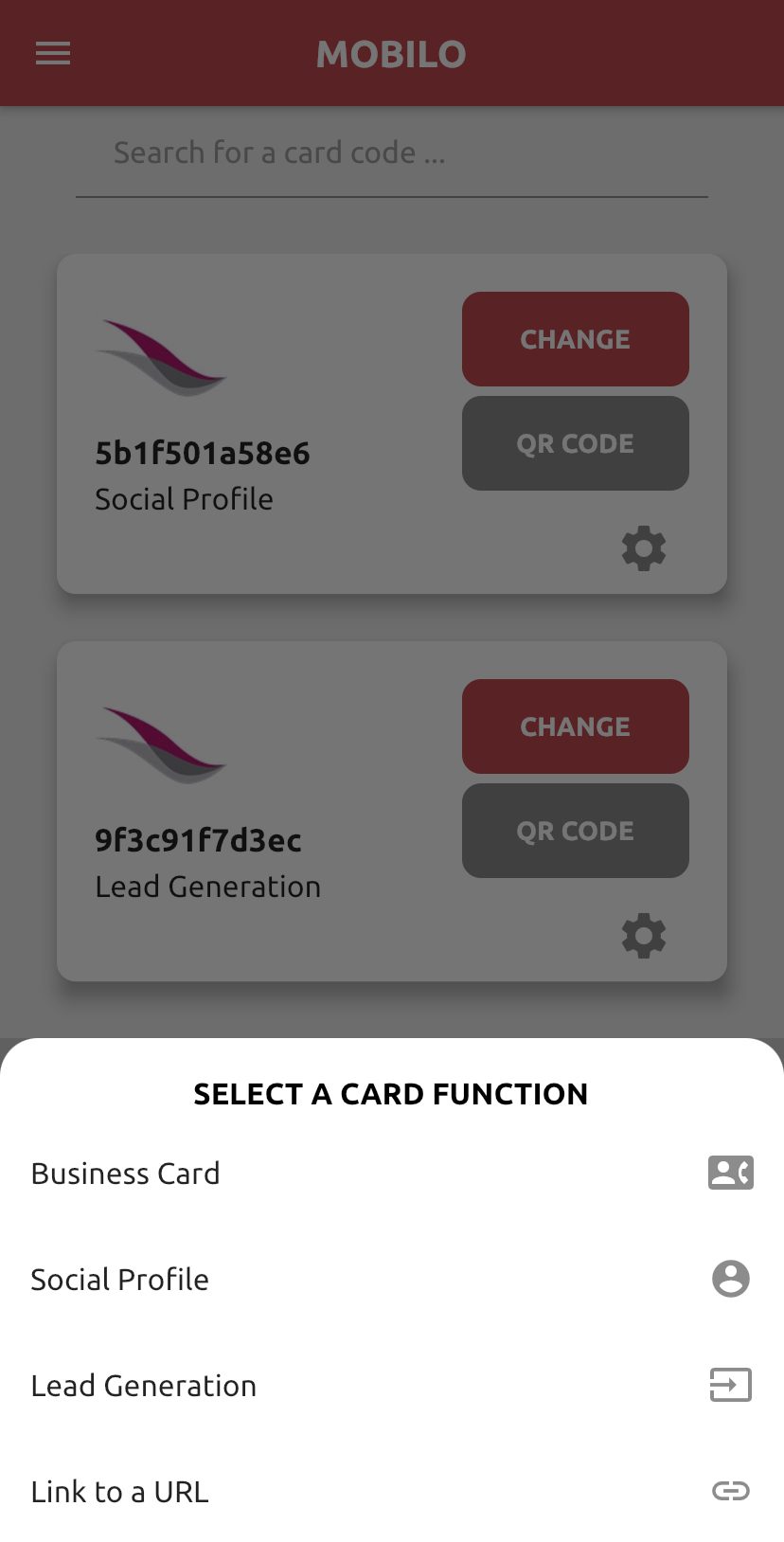
Tap the third icon that resembles a credit card on the bottom of the screen and click "QR CODE" to reveal your unique code, or click "CHANGE" to configure how your digital business card displays for others.
Choose one of the following options to control how others receive your digital business card.
Placing the button on a device
PLEASE NOTE: The button has a strong adhesive and may be difficult to remove once it is applied. It is not necessary to place the button on a phone and will work on its own. AVOID placing the button near your cell phone's camera as it will interfere with your RFID chip and may unintentionally scan your button.
- Clear any debris off of the area you wish to place the button
- Remove the protective sticker from the back of the button
- Carefully place the button with the logo right-side up
How to use your digital business card
PLEASE NOTE: The digital business cards will not scan on older iPhones or Androids that have their RFID settings turned off. Please ensure that your Android phone is able to use its RFID sensor before proceeding. If you have trouble scanning your button or card then you may use your unique QR code as it will continue to work correctly without the card or button. Click here for a list of compatible phones.
When you're ready to share your contact information with someone:
Apple
Ensure that their phone screen is unlocked then place your button or card over the back of their phone. Tap your card or button to the top of their phone near the camera or have the other person open the camera and scan the QR code.
- Tap and hold the circle (initials or image)
- Select "Create New Contact"
- Save contact
- Your contact information is now saved in their phone
Android
Tap your card at the back and center of your phone or open the camera and scan the QR code.
- Open the link and download the file
- Open the file
- Tap SAVE (top right corner)
- Your contact information is now saved in their phone
For support, see: https://support.mobilocard.com or email marketing@paragonaviationgroup.com